Overview
If you're experiencing performance issues, failed deployments, or other anomalies in your instance, restarting it can help resolve the problem. Instead of manually contacting support, you can now use the AI Assistant to request an instance restart.
This guide explains how to trigger an instance restart using the AI Assistant, including what information you'll need and how the request is processed.
Solution
Follow these steps to request an instance restart:
Step 1: Launch the AI Assistant
- Login to the helpcenter using your business email address
- How to Make the Best Use of the Khoros AI Support Agent
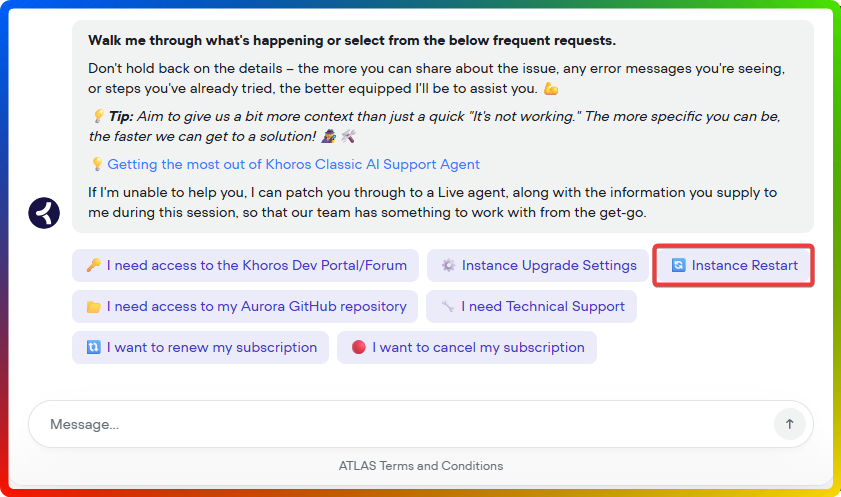
Step 2: Choose the “🔄 Instance Restart” Action
-
Select from the provided options the "🔄️ Instance Restart" button
Step 3: Provide or Confirm Your Instance URL
-
The Assistant will ask for the URL of the instance you want restarted. If you’ve used the Assistant before, it may already know the URL and only request confirmation.
Step 4: Automated Instance Validation
-
With the URL, the system will query backend data to determine details about the instance (like designated maintenance window and environment type: production, pre-production, staging).
Step 5: Approve Restart Timing
-
You’ll be shown the instance type (prod, pre-prod, stage) and asked how soon the restart should happen:
-
By default, restarts (production, pre-production and staging) run during your instance's designated Khoros Maintenance Windows.
-
You can instead request an immediate restart; it starts within about 15 minutes of your request.
-
If your community is down or not working right now, report it as an outage instead, so our team can investigate, rather than only requesting a restart.
-
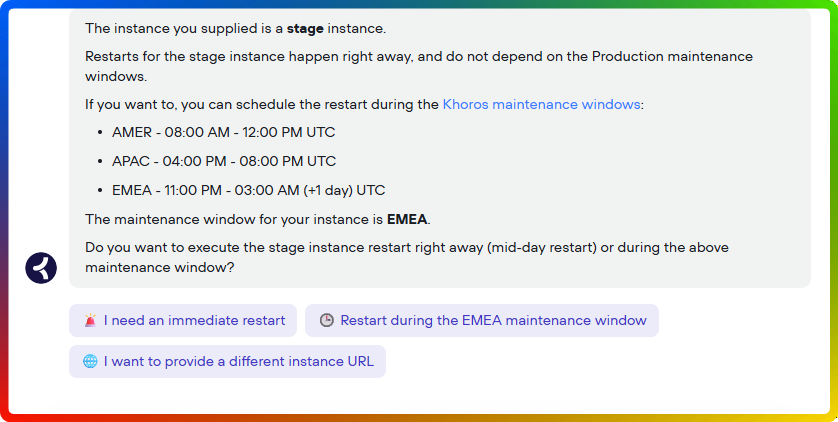
📌 You cannot choose another maintenance window outside the one assigned to your instance.
Step 6: Ticket Created for Tracking
-
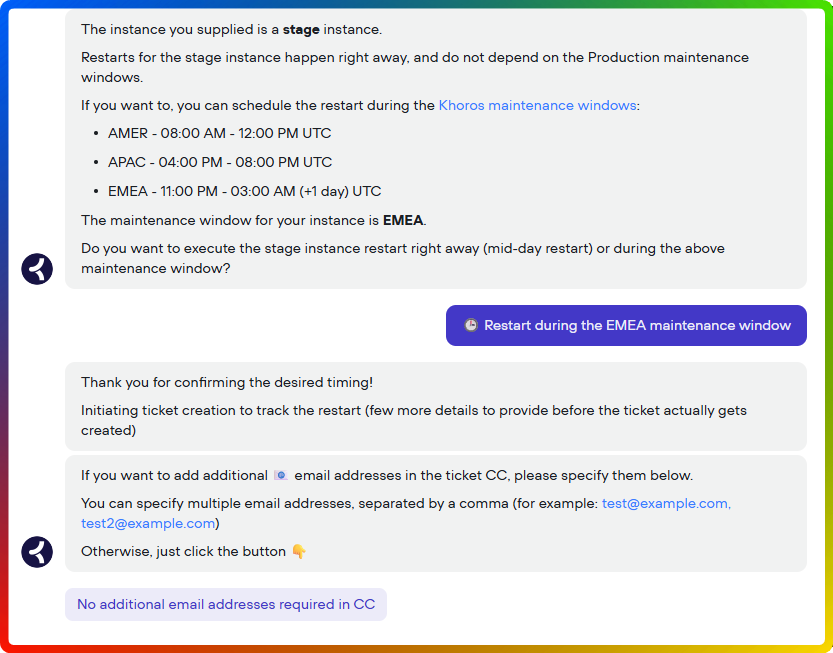
Once timing is confirmed, the AI Assistant will ask for a couple more details, and then it will create a support ticket on your behalf. You’ll receive a ticket ID, where you will receive further updates.
-
The restart is scheduled automatically, and you'll be updated on the ticket when it has run..
Summary
When encountering performance or deployment issues, you can now ask the AI Assistant to restart your instance. The process involves selecting a restart action, confirming your instance URL, approving timing (immediate or during maintenance windows), and then tracking progress via an auto‑generated support ticket.
FAQ
Q1: How long does it take for the restart to be completed?
A1: A maintenance-window restart runs in your next window; an immediate restart starts within about 15 minutes. The restart itself usually takes between 20 minutes and 1 hour, depending on the instance's type and size. You'll be updated on the ticket when it is done.
Q2: Can I restart multiple instances at once using the AI Assistant?
A2: No, you need to request each restart separately by interacting with the AI Assistant multiple times.
Q3: What happens if I provide an incorrect instance URL?
A3: The assistant will notify you if it cannot find the instance and you can provide another one. If the URL is indeed correct, but the AI Assistant cannot find your instance details, you will be guided through ticket creation for human assistance.
Q4: Will there be any downtime?
A4: The restarts initiated in this manner are rolling restarts, which means that each node in the cluster will be restarted one by one, thus there will be no downtime.
Ciprian Nastase
Comments